𝗦𝗵𝗿𝗶𝗻𝗸𝗶𝗻𝗴 𝗩𝗶𝗿𝘁𝘂𝗮𝗹 𝗗𝗿𝗶𝘃𝗲𝘀 𝗶𝗻 𝗪𝗦𝗟
Intro
Although Microsoft provides a few helpful How-TOs on managing the disk space of WSL virtual machines, it’s still unclear to many how to shrink the size of their virtual hard drive files (VHDs). This article aims to close that gap for those looking for a solution, as I once was.
Why we might need to shrink VHD file size
Possible reasons:
- You may be using a VM based on Linux for active development inside Docker containers. This implies downloading many different Docker images, running containers based on them, and removing clutter from container and image registries (I hope you do 🙂).
- You may have many VMs of this kind.
- You may be using WSL for experiments that involve installing and removing many packages.
We may be using many machines and actively deploying and removing things inside them, but removing clutter doesn’t automatically shrink virtual disk size. This is why we need to perform this maintenance procedure manually.
Steps
Step 1. Install the ‘Optimize-VHD’ cmdlet.
First, we need to enable the Windows feature that contains the Optimize-VHD cmdlet.
Normally, when a user installs WSL and configures their first WSL machine, Windows automatically installs only the essential parts of the Hyper-V PowerShell module and the Optimize-VHD cmdlet is not available by default. This cmdlet is part of the ‘Microsoft-Hyper-V-Management-PowerShell’ sub-feature.
If the cmdlet is not available in your environment, run this command as Administrator:
Enable-WindowsOptionalFeature -Online -FeatureName Microsoft-Hyper-V-Management-PowerShell -All -NoRestartThe command installs the required Hyper-V PowerShell submodule with all dependencies on the current Windows system environment without triggering an immediate restart. You can read more about this command here.
Afterward, run the following to check whether the feature is enabled:
Get-WindowsOptionalFeature -Online -FeatureName Microsoft-Hyper-V-Management-PowerShellThe output will look as follows:
Feature status output
Step 2. Clean up disk space inside a VM.
If Docker artifacts are occupying the most space inside the VM, you may need to remove unnecessary or outdated containers, images, volumes, image builder cache, etc. To get information about the amount of disk space used by Docker, run this command:
docker system dfThe output will look as follows:
Docker ‘df’ command output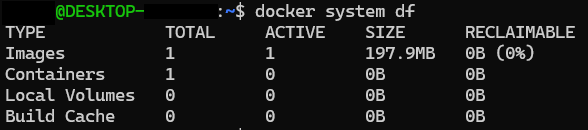
For instructions on using the rm command for different types of Docker artifacts, please read the native Docker documentation, as it’s outside the scope of this article.
I’m including only the command that clears the Docker image builder cache, as it may be unknown to novice users when cleaning up disk space:
docker builder prune -aThis command removes all unused image builder cache.
You may also need to clean the system package management cache in your distro. In Debian, you can run sudo apt-get clean to do this.
Now we are ready to proceed to the next step.
Step 3. Stop all your WSL VMs.
Run the command:
wsl --shutdownIt stops all running VMs and the WSL environment itself. You can read more about this command here.
Step 4. Locate VHD directories.
Most likely, you won’t need to run complex scripts, as VMs’ VHD files are typically located in the C:\Users\<%UserName%>\AppData\Local\Packages\ directory (substitute %UserName% with your username). The VM directory name may look like this: TheDebianProject.DebianGNULinux_76v4gfsz19hv4. As you can see, you can identify it by the distro vendor and/or distro name.
If you didn’t manage to find the directory for your WSL VM instance, use this documentation reference.
Inside your VM directory you will find the .\LocalState directory where the VHD file is stored. Normally, it will be called ext4.vhdx.
Step 5. Perform VHD shrinking.
- Note the VHD file size before you make changes.
- Open a PowerShell terminal as Administrator and change the directory to the target VHD’s directory. In my case, it will look like this:
cd C:\Users\MyUser\AppData\Local\Packages\TheDebianProject.DebianGNULinux_76v4gfsz19hv4\LocalCache\- Run the following command in your PowerShell terminal (it’s fairly self-explanatory, but if you wish to dive into the details, here is the link):
Optimize-VHD -Path .\ext4.vhdx -Mode full- Check the VHD size change and marvel at how cool you are 😉.